Gradient Skies
Egret StudiosExtensionposted 3 months ago
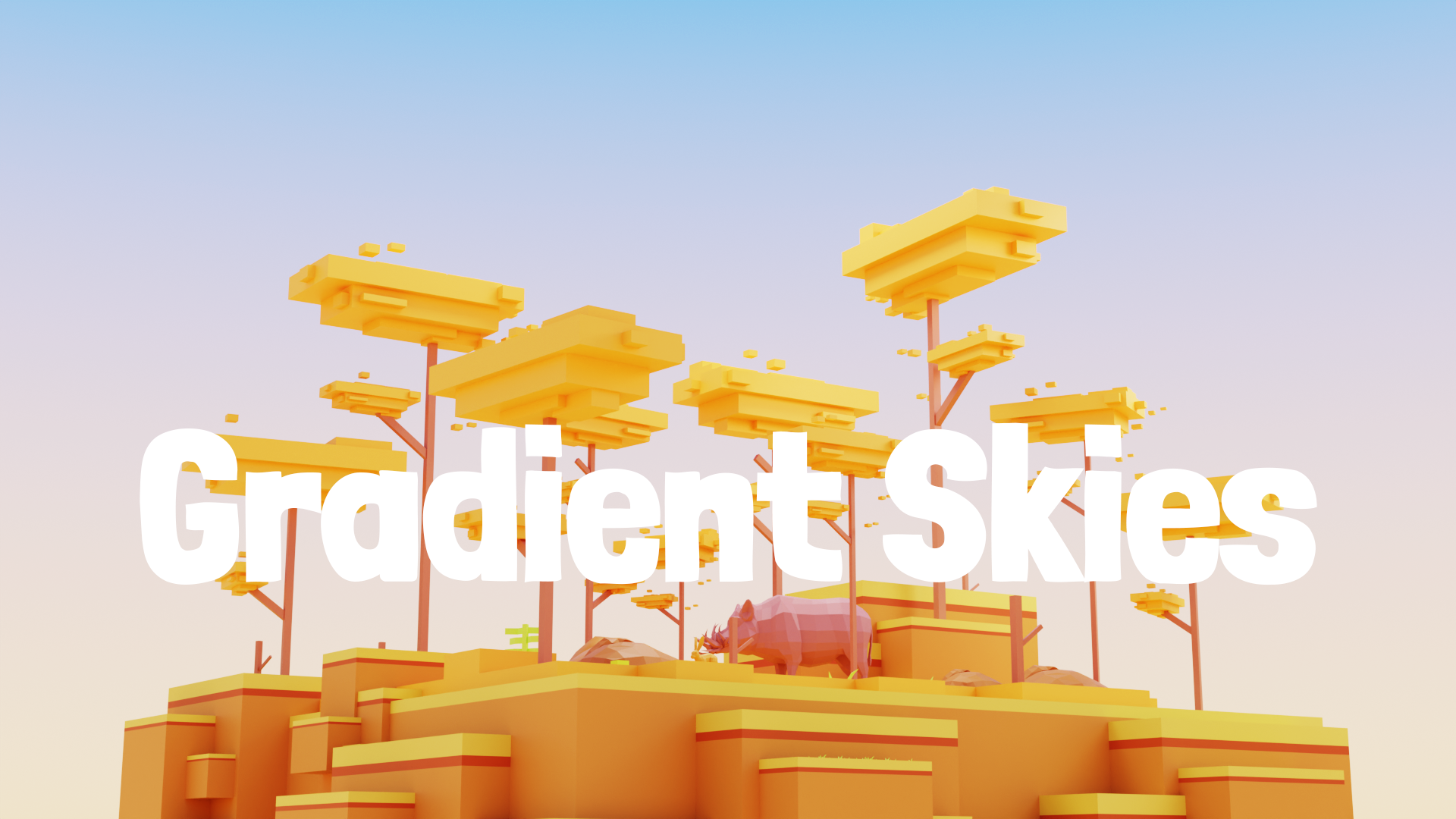
Gradient Skies lets you build beautiful sky backgrounds directly in your Blender scene with no manual node wiring required.
description


attributes
- blender
- 4.0 – 5.1
- license
- GPL
- engines
- Cycles, Eevee
- sales
- none yet
questions
- Does Gradient Skies Affect Scene Lighting?
Yes. The World background contributes lighting to the scene when World lighting is enabled in Blender. The Strength setting controls the intensity of that lighting. Set Strength to 0 if you want the sky visible only as a background without affecting scene illumination.
documentation
Gradient Skies: User Documentation
Version: 1.0.0
Blender: 4.0 and above
Author: Egret
What It Does
Gradient Skies allows you to create beautiful sky backgrounds directly inside your Blender scene without manually building node setups. Choose a preset or create your own custom gradient, then apply it instantly. The addon automatically builds a clean World shader node tree while keeping everything simple and non-destructive.
The generated sky works correctly in both Cycles and EEVEE.

Installation
Download the
_gradient_skiesfolderCompress it into
gradient_skies.zipOpen Blender
Navigate to Edit → Preferences → Add-ons
Click Install from Disk
Select
gradient_skies.zipEnable Gradient Skies from the addon list
After installation, the addon panel will appear in the 3D Viewport Sidebar.
Press N to open the sidebar and locate the Gradient Skies tab.
Quick Start
Open the Gradient Skies panel
Select any preset
Adjust colors and settings if needed
Click Apply Gradient Sky
The sky updates instantly in the viewport and renders correctly.
Panel Reference
Presets
Gradient Skies includes eight ready-made sky presets designed for different moods and lighting situations.
PresetDescriptionSunsetDeep purple sky fading into a bright orange horizonGolden HourWarm amber tones blending into a rich blue skyClear DayBright midday blue with a soft atmospheric horizonDawnCoral and peach horizon transitioning into pale blueNight SkyDark navy and near-black nighttime atmosphereStormyHeavy overcast gray skies with dramatic contrastTwilightDeep navy upper sky with purple and magenta tonesDesertSaturated blue skies with warm sandy haze
Selecting a preset automatically applies it to the current scene.
Gradient Colors
Zenith
Controls the color at the very top of the sky.
Horizon
Controls the color at the horizon line where the sky meets the ground.
Ground Color
Enables an additional color stop below the horizon.
This is useful for creating ground bounce lighting, darker lower atmospheres, or subtle environmental separation.
Ground
Defines the color displayed below the horizon when Ground Color is enabled.
Settings
Horizon Level
Moves the horizon line vertically inside the gradient.
Positive values raise the horizon and expose more ground color.
Negative values lower the horizon and expose more sky.
Range: −0.4 to +0.4
Strength
Controls the brightness and light intensity emitted by the sky.
Higher values produce stronger environmental lighting.
Default value: 1.0
Blend Physical Sky
This section blends the gradient with Blender’s built-in Sky Texture node for more realistic atmospheric lighting.
Blend Physical Sky
Enables the physical sky system.
Sky Model
Selects the atmospheric model used by Blender.
Nishita
The most physically accurate model.
Produces realistic atmospheric scattering and visible sun lighting.
Recommended for daylight scenes.
Hosek-Wilkie
A slightly more stylized atmospheric model.
Useful for clean cinematic renders.
Preetham
A lightweight atmospheric model intended for fast previews.
Sun Elevation
Controls the vertical angle of the sun.
0° places the sun on the horizon.90° places the sun directly overhead.
Sun Rotation
Controls the horizontal direction of the sun around the scene.
Sky Mix
Controls how much of the physical sky blends with the gradient.
0.0 results in a pure gradient.0.5 blends both equally.1.0 uses only the physical sky.
Real-time Update
When enabled, the sky updates automatically whenever a value changes.
This is useful for interactive tweaking and look development.
Disable it when making many rapid adjustments to avoid unnecessary rebuilds.
Apply and Reset
Apply Gradient Sky
Builds or rebuilds the World shader node tree.
If no World shader exists, one is created automatically.
Reset World
Removes all generated nodes and restores Blender’s default World background setup.
Useful when starting fresh or switching back to manual node editing.
Node Tree Overview
Applying a gradient sky creates the following World shader setup:
Texture Coordinate (Generated)
        ↓
  Separate XYZ
        ↓
     Map Range
        ↓
    Color Ramp
        ↓
(optional Sky Texture Blend)
        ↓
    Background
        ↓
   World Output
The addon uses Blender’s Generated coordinates to map a smooth vertical gradient across the environment sphere.
The Z axis naturally transitions from bottom to top, allowing the Color Ramp to create a consistent sky gradient regardless of camera direction.
Because the setup uses only standard Blender nodes, you can manually modify the shader at any time inside the World Shader Editor.
Tips
Creating Better Sunsets
Use the Sunset preset.
Increase Strength to around 1.8 or 2.0.
Lower the Horizon Level slightly to around −0.05 for a more natural sunset glow.
Using HDRI Lighting
You can combine Gradient Skies with HDRI workflows by using separate World setups or Light Path nodes.
This allows the gradient to remain visible in the background while the HDRI handles reflections and lighting.
Softer or Sharper Horizons
Inside the World Shader Editor, adjust the Color Ramp interpolation mode.
Use Linear for sharper transitions.
Use B-Spline for softer gradients.
Render Safe Workflow
The generated node tree uses only built-in Blender nodes.
Scenes remain fully functional even if the addon is removed later.
Creating Stars
Apply the Night Sky preset.
Add a Noise Texture connected through a high-contrast Color Ramp and blend it into the background using a Mix node.
Suggested values:
Scale: 800
Detail: 8
This creates a simple procedural star field.
Compatibility
Blender VersionStatus4.0Supported4.1Supported4.2 LTSSupported4.3 and aboveSupported3.x and belowNot Supported
Compatible with both Cycles and EEVEE / EEVEE Next.
Troubleshooting
The Sky Does Not Appear
Ensure World shading is enabled in the viewport shading settings.
Open the viewport shading popover and confirm that World is enabled.
Existing World Shader Was Replaced
Applying a preset rebuilds the World node tree.
If you want to preserve an existing setup, duplicate or copy your nodes before applying Gradient Skies.
You can also use Ctrl + Z immediately after applying.
Gradient Looks Flat in EEVEE
Increase the World resolution inside:
Render Properties → EEVEE → World Resolution
Values of 1024 or higher are recommended.
Physical Sky Is Not Visible
Ensure Blend Physical Sky is enabled and Sky Mix is above 0.
If issues persist, switch the sky model to Nishita, which has the best compatibility across Blender versions.
License
GNU General Public License v3.0 or later (GPL-3.0-or-later)
Copyright 2026 Egret Studios LLC
ratings (0)
tags
posting details
- listing id
- 04frn0rqc9
- posted
- 2026-06-04 13:19
- updated
- 2026-06-14 17:12